Download: rundo4.zip (242 KB),
rundolines4.zip (243 KB), updated 14 August 2011
Table of contents1. Introduction2. Requirements3. Installation4. Using the programs5. Known problems and troubleshooting6. Acknowledgments7. History of the programs1. IntroductionStata is a statistical package that is available for Windows, Macintosh and Unix operating systems. This guide addresses some shortcomings of the text editor that is part of the Stata package. Stata's Do-File Editor is fully integrated and commands can be executed directly from the editor with a keyboard shortcut or the click of a button. External editors often have a richer set of features, including syntax highlighting, but they lack integration with Stata.
This document describes how external text editors can be integrated with Stata in a way similar to the Do-File Editor. Two free programs are offered for this purpose:
rundo.exe allows the execution of complete Stata do-files from an external editor, and
rundolines.exe allows the execution of selected Stata commands from an external editor. Both programs can be installed and used together or individually.
2. Requirements- MS Windows: The programs were tested with Windows XP, Windows Vista and Windows 7 and should work with older versions of Windows. Macintosh and Unix operating systems are not supported.
- Stata: The programs were tested with Stata versions 8, 9, 10 and 11 (up to version 11.2). Support for Stata 12 was added in August 2011.
- Text editor: The programs were tested with Notepad++ 4.8.2 and later versions. They have also been confirmed to work with ConTEXT, Crimson Editor, EditPlus, EmEditor, PSPad, TextPad, TeXnicCenter, and UltraEdit. In addition, previous versions of the programs were reported to work with gVim, Hidemaru, jEdit, SciTE, Vim, and WinEdt.
- rundo.exe version 4 and rundolines.exe version 4: Download rundo4.zip (242 KB) and rundolines4.zip (243 KB).
Please contact the author at fhuebler@gmail.com if you use the programs with any editor besides ConTEXT, Crimson Editor, EditPlus, EmEditor, Notepad++, PSPad, TextPad, TeXnicCenter, and UltraEdit, so that the list of supported text editors can be updated. Thank you.
3. InstallationThe integration of an external text editor with Stata can be accomplished with three simple steps:
- Download and extract the rundo and rundolines programs.
- Edit the INI files.
- Find a way to call rundo.exe and rundolines.exe from the text editor with a keyboard shortcut, a menu entry, or an icon in the toolbar.
Step 1: Download the rundo and rundolines programs and save the contents of the two ZIP files anywhere on your computer. One suggested location is the personal ADO directory of Stata, usually
C:\ado\personal\. Each ZIP archive contains three files: the executable, the source code, and an INI file.
The programs were written and compiled with
AutoIt version 3.2.12.1. Users who prefer to compile the programs themselves can do so with the included source code.
Step 2: Edit the INI files for the rundo and rundolines programs. rundo.ini and rundolines.ini are identical and list six options that must be edited to match the user's setup.
- statapath is the path to the Stata executable, enclosed in quotes, for example "C:\Program Files\Stata11\StataSE.exe".
- statawin is the title of the Stata window, also enclosed in quotes, for example "Stata/SE 11.2". The window title is shown in the upper left corner of the main Stata program window (see Figure 1 with the program window of Stata/SE 10.1).
- statacmd is the keyboard shortcut to the Stata command window. In Stata versions 8 to 11, the shortcut is Ctrl+4 (written as "^4" in the INI file). In Stata 12, released in July 2011, the shortcut was changed to Ctrl+1 (written as "^1" in the INI file).
- clippause is a pause after Stata commands are copied to the Windows clipboard.
- winpause is a pause between window-related operations, for example between the switch from the text editor to Stata.
- keypause is the pause between individual key strokes that are sent to Stata.
The last three options are specified in milliseconds. The default values should work for most users but they can be reduced for a faster execution of the rundo and rundolines programs. If the pauses are too short, the programs fail and no commands are passed on to Stata.
Figure 1: Stata program window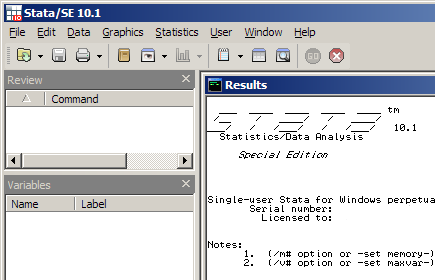 Step 3:
Find a way to call rundo.exe and rundolines.exe from the text editor with a keyboard shortcut, a menu entry, or an icon in the toolbar. This example shows how the programs can be linked to
Notepad++, a free text editor for MS Windows. For Stata users, an optional language file for syntax highlighting is available in the Notepad++
download section. Other text editors can also be integrated with Stata if they provide an option to call the rundo and rundolines programs; many editors have this capability.
- rundolines:
- In Notepad++, go to the Run menu and select Run.
- Browse to rundolines.exe and enclose the entire path in quotes. For example, if rundolines.exe is saved in the directory C:\ado\personal\, the complete entry in the Run box of Notepad++ would be:
"C:\ado\personal\rundolines.exe" - Click Save.
- Enter a name, for example "Run do-lines", and select a shortcut, for example F9 (see Figure 2).
- Click OK, click Cancel.
- rundo:
- In Notepad++, go to the Run menu and select Run.
- Browse to rundo.exe enclose the entire path in quotes. Next, add the text "$(FULL_CURRENT_PATH)" (with quotes) after the path to rundo.exe. For example, if rundo.exe is saved in the directory C:\ado\personal\, the complete entry in the Run box of Notepad++ would be:
"C:\ado\personal\rundo.exe" "$(FULL_CURRENT_PATH)" - Click Save.
- Enter a name, for example "Run do-file", and select a shortcut, for example F10 (see Figure 3).
- Click OK, click Cancel.
Figure 2: Notepad++ shortcut setup for rundolines program Figure 3: Notepad++ shortcut setup for rundo program
 4. Using the programs
After the programs have been successfully installed, Stata commands can be executed directly from the text editor. In the case of Notepad++, press F10 (or any other assigned shortcut) to run a saved Stata do-file. To run only a few commands, highlight the relevant lines in the editor and then press F9 (or any other assigned shortcut).
The rundo program sends the path of the do-file to the Stata Command window, preceded by the word "do" and followed by Enter. If more than one instance of Stata is open, the do-file is executed in the Stata window that was most recently active. If Stata is not open, the rundo program starts Stata and then runs the do-file. Note that a do-file must be saved before the rundo program is called because it looks for the saved version of the document that is currently being edited. An alternative would be to first select the entire text in the editor and then call the rundolines program, which passes all selected lines to Stata.
The rundolines program saves the highlighted lines in a temporary file and then sends the path of the temporary file to the Command window in Stata, preceded by "do" and followed by Enter. If more than one instance of Stata is open, the commands are executed in the Stata window that was most recently active. If Stata is not open, the rundolines program starts Stata and then runs the selected commands.
The rundo and rundolines programs are self-contained, they do not create any files besides a temporary file with Stata commands, and they make no changes to the Windows registry. As the source code shows, the only function of the programs is to copy commands from the text editor and pass them on to Stata. However, both programs overwrite the contents of the Windows clipboard directly after they are executed because the clipboard is used to store the path to the Stata do-file.
5. Known problems and troubleshootingUsers who encounter problems during the installation or execution of the rundo and rundolines programs are advised to follow the troubleshooting steps in this section.
Known problem 1: If the rundo and rundolines programs fail, the
clippause,
winpause and
keypause values may be too small. In that case, edit rundo.ini and rundolines.ini, increase the pause values (especially for
winpause and
clippause), and then run the programs again. For best results, the values in the INI files are long enough so that the rundo and rundolines programs do not fail and short enough to avoid noticeable delays before the execution of the commands in Stata. The default values in the INI file should work on most systems.
Known problem 2: A second known problem involves keyboard shortcuts to rundo.exe and rundolines.exe that use combinations with Shift or Ctrl, for example Shift+F9 or Ctrl+F10. Such shortcuts can result in a "stuck" Shift or Ctrl key in Stata. This problem affects Notepad++ and other editors. Shortcuts without Shift or Ctrl are therefore preferred.
Known problem 3: After an update of Stata, for example from version 11.0 to version 11.1, the rundo and rundolines programs may stop functioning if the title of the Stata window has changed (see Figure 1). If this is the case, edit the
statawin entries in the rundo.ini and rundolines.ini files to reflect the correct window title.
Troubleshooting: The rundo and rundolines programs should work if the
installation instructions are followed exactly. If the programs do not work, please use the steps below to test your setup. I recommend testing the rundolines program first because its internal code is less complicated than the code for the rundo program.
- Save rundolines.exe and rundolines.ini in the same folder, as described in Step 1 of the installation instructions above. Do not edit and recompile the AU3 file.
- Edit the rundolines INI file as described in Step 2 of the installation instructions.
- Add a link to Notepad++ as described in Step 3 of the installation instructions.
- Start Stata.
- Start Notepad++ and type one or more Stata commands, for example "dir" (without quotes).
- Highlight the Stata commands in Notepad++ with the mouse or by pressing Ctrl+A.
- Press F9 (or any other shortcut that was assigned to rundolines.exe) to call the rundolines program. Stata should now run the commands from Notepad++. If the commands are not executed, the rundolines program cannot find Stata because the window title in the INI file is incorrect. If this is the case, edit rundolines.ini to match the title of the Stata program window, as shown in the installation instructions. For example, note the difference between "Stata" and "Stata/SE". Save the INI file and repeat steps 4 to 7 until it is possible to run commands from Notepad++ in a copy of Stata that is already open. Move on to the next step.
- Close Stata but keep Notepad++ open.
- Highlight all Stata commands in Notepad++ with the mouse or by pressing Ctrl+A.
- Press F9 (or any other shortcut assigned to rundolines.exe) to call the rundolines program. Stata should now start and run the commands from Notepad++. If Stata does not start, review the rundolines.ini file and make sure that the path to the Stata executable is correct. For example, note the difference between wstata.exe and wsestata.exe. Save the INI file and repeat steps 8 to 10.
When the rundolines program works as expected, the troubleshooting steps can be repeated for the rundo program. However, rundo.exe is more complex than rundolines.exe and may not be compatible with as many editors as the rundolines program. This possible limitation can be overcome by using rundolines instead of rundo: to run an entire Stata do-file simply highlight all text in the editor (usually by pressing Ctrl-A) and then call rundolines.exe.
6. AcknowledgmentsThe rundo and rundolines programs are based on previous work by Dimitriy Masterov and Eva Poen.
Masterov demonstrated in a post to the Stata mailing list how a do-file can be executed from Vi.
Poen showed how individual lines can be executed from WinEdt.
Nicholas Winter suggested changes to the programs that made them more efficient and solved some problems with the Windows clipboard.
Jeffrey Arnold described how INI files can be used to set program parameters, making it possible to distribute precompiled and thus more user-friendly versions of the rundo and rundolines programs.
Others tested the programs with different editors, suggested modifications, or provided general feedback. For this, I would like to thank the following persons: Alexey Bessudnov, Nicholas Cox, Marcos Delprato, Matthew Forbes,
Ari Friedman,
Stefan Gawrich,
Masakazu Hojo,
Changhwan Kim and Haebong Woo,
Keith Kranker, Randall Lewis,
Kieran McCaul, Salmai Qari, Tomoyo Sakiyama, Alonso Sánchez, Raul Sanchez, Sven-Oliver Spieß, Timm Sprenger, Francisco Tschen, Renato Vargas, Robert White, Ansgar Wolsing, Amanda Tzy-Chyi Yu, and Markus Zielonka.
7. History of the programs - July 2004: First version of rundolines.au3 sent to the Stata mailing list (see Statalist archive).
- October 2004: First version of this guide, with both scripts, released as part of "Some notes on text editors for Stata users".
- March 2005: Scripts revised to work with Stata 7 and 8.
- March 2005: Expanded guide added to my blog on international education statistics.
- April 2005: Guide and scripts added to my website, with direct download links.
- 6 June 2005: Version 2.0 of scripts released, with support for Stata 9. The scripts are now compatible with Stata 7, 8, and 9. Scripts work with more than one instance of Stata. Scripts no longer rely on the built-in editor of Stata. New version of this guide.
- 8 June 2005: Version 2.1 of scripts released. Fixed problem with the clipboard that was reported by some users: scripts no longer attempt to restore clipboard or text in Stata Command window.
- 30 June 2005: Version 2.1.1 of rundolines script released, with minor bug fix related to clipboard.
- 26 September 2005: Version 2.2 of scripts released. The scripts are now compatible with Stata 9.1, released on 15 September 2005.
- 22 June 2006: New section added to the guide: Supported editors.
- 28 January 2007: The list of supported editors now includes EmEditor, gVim, Hidemaru, jEdit, Notepad++, SciTE, TextPad, Vim, UltraEdit, and WinEdt.
- 26 April 2008: The following editors have been confirmed to work with the scripts: Crimson Editor, EditPlus, EmEditor, gVim, Hidemaru, jEdit, Notepad++, SciTE, TextPad, Vim, UltraEdit, and WinEdt.
- 27 April 2008: Version 3 of the rundo and rundolines programs was released. The programs are now precompiled and no longer require installation of AutoIt. On the occasion of the new release, the previous guide to integrating Stata with external text editors was replaced by a new version of the guide.
- 22 June 2008: Section on troubleshooting added to this guide.
- 12 October 2008: The rundo and rundolines programs have been confirmed to work with Windows Vista. The acknowledgments section of this guide was expanded.
- 8 January 2009: The section on known problems and other parts of the guide were revised.
- 30 March 2009: Version 3.1 of the rundo and rundolines programs was released, with a bugfix. Version 3 of rundo.exe pointed to rundolines.ini instead of rundo.ini. Users who had only installed the rundo program received an error message when they tried to execute a do-file. The code of rundo.exe and rundolines.exe was also updated to version 10.1 of Stata. Both programs continue to work with older versions of Stata.
- 31 August 2009: INI files updated to support Stata 11.
- 17 April 2011: INI files updated to support Stata 11.2.
- 14 August 2011: Version 4 of the rundo and rundolines programs was released. The new programs support Stata 12, released in July 2011. To be compatible with all versions of Stata, it was necessary to add an option to specify the keyboard shortcut to the Stata command window. In Stata versions 8 to 11 the keyboard shortcut is Ctrl+4, in Stata 12 it is Ctrl+1. Users who upgrade from an older version of Stata to Stata 12 must install version 4 of the rundo and rundolines programs. Users of Stata 11 or previous versions of Stata can continue to use version 3.1 of the programs, which have been archived at these links: rundo3.zip (240 KB), rundolines3.zip (240 KB).
- 21 June 2012: The rundo and rundolines scripts are now hosted at Dropbox. This change was necessary because I no longer maintain a separate website at huebler.info, where I had previously hosted the scripts.
Related articlesExternal linksFriedrich Huebler, 27 April 2008 (edited 22 August 2012), Creative Commons License
Permanent URL: http://huebler.blogspot.com/2008/04/stata.html